Are you asking "why is my Roblox lagging for no reason"? Many gamers, especially those balancing jobs, families, and life, find that frustrating slowdowns can ruin precious relaxation time. It's a common pain point: one moment you are enjoying a social experience or building skills, the next your game is stuttering, freezing, or disconnecting, seemingly without an obvious cause. This comprehensive guide is designed to empower you with actionable solutions. We'll dive deep into the hidden factors behind Roblox lag, from subtle internet instabilities and outdated device configurations to in-game settings and background applications silently consuming resources. Our aim is to help you troubleshoot and optimize your Roblox experience, ensuring your valuable gaming hours are spent enjoying fluid gameplay, not wrestling with performance issues. Discover practical tips to enhance connection stability, fine-tune device settings, and maintain peak performance for a consistently smooth and enjoyable Roblox adventure, making sure every moment counts.
How do I check if my internet connection is the real culprit for Roblox lag?
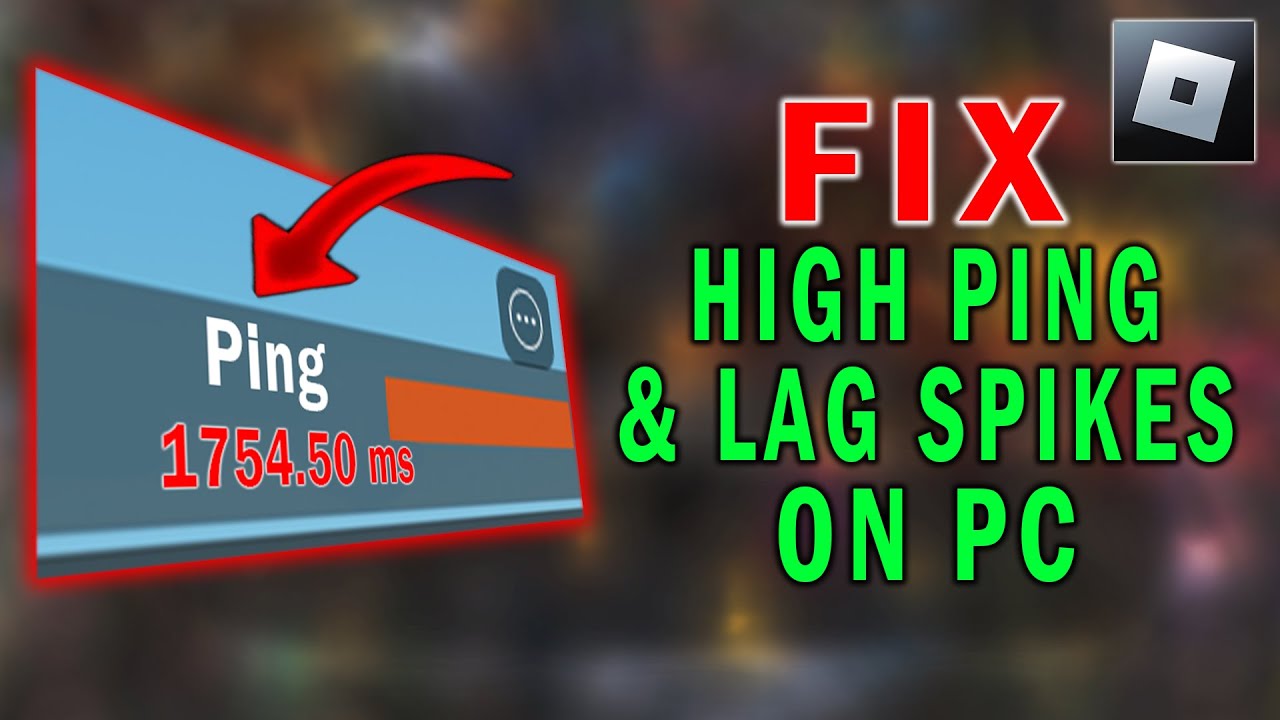
To pinpoint if your internet is causing Roblox lag, start by performing a speed test using sites like Speedtest.net or Fast.com. Pay attention to ping (latency) and jitter, not just download/upload speeds. A high ping (over 50-100ms for gaming) or significant jitter indicates instability. Also, try connecting your device directly to your router with an Ethernet cable instead of Wi-Fi. If the lag improves, your Wi-Fi signal or interference is likely the problem, not your overall internet speed.
What specific in-game settings are best to tweak for performance on older PCs?
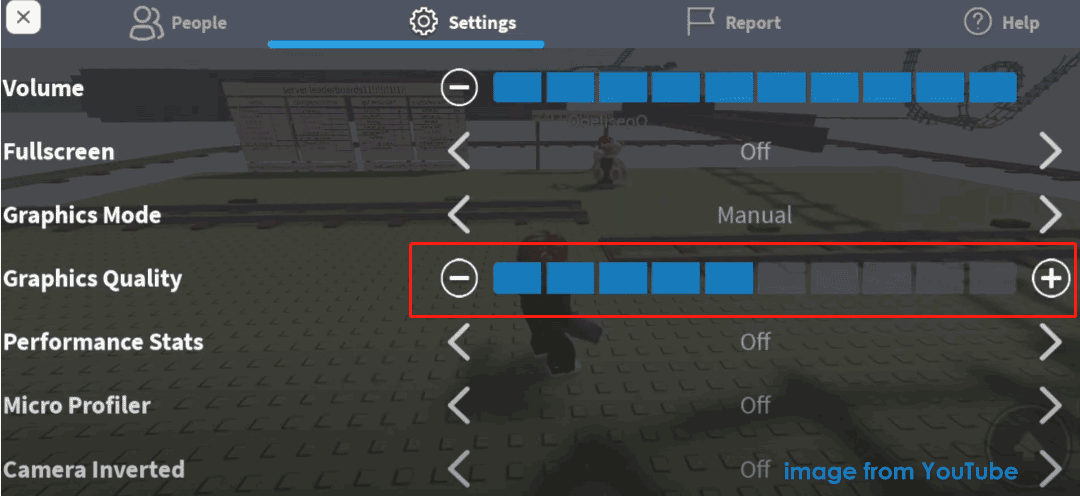
For older or less powerful PCs, the best in-game settings to tweak are primarily the Graphics Quality slider. Set it to the lowest manual setting possible (typically '1' or '2'). Also, ensure 'Graphics Mode' is set to 'Manual' instead of 'Automatic.' You'll want to disable performance-intensive visual effects like shadows or reflections if they are offered as separate toggles within a specific Roblox experience. Reducing your screen resolution in Windows display settings before launching the game can also provide a small boost.
Can too many background apps really make Roblox unplayable?
Absolutely, too many background applications can severely impact Roblox performance, sometimes making it unplayable. Each running program consumes CPU, RAM, and potentially network bandwidth. When these resources are stretched thin, Roblox struggles to get the power it needs, leading to lag, low frame rates, or even crashes. Use your Task Manager (Ctrl+Shift+Esc on Windows) to identify and close any non-essential apps like web browsers with many tabs, streaming services, or other games before you launch Roblox to free up critical resources for your game.
My friends don't lag in the same Roblox game. Why just me?
If your friends aren't experiencing lag in the same Roblox game, it strongly suggests the issue is local to your setup rather than a server-wide problem. Common reasons include your individual internet connection's stability (latency, packet loss), your device's hardware limitations, or even unique software conflicts on your computer. Your friends might have newer hardware, a more stable wired connection, or simply fewer background programs running. Systematically checking your internet, device performance, and background apps will likely uncover the difference.
What about Roblox server status? How do I know if it's their problem, not mine?
To determine if Roblox server status is the cause of your lag, check reliable third-party outage trackers like Downdetector or Roblox's official status Twitter accounts. If there are widespread reports of issues, maintenance announcements, or service disruptions, it's likely a server-side problem affecting many users. If no widespread issues are reported and your friends aren't lagging, the problem is most likely on your end, prompting you to troubleshoot your local network and device settings.
Are there any essential system updates I might be missing that affect Roblox?
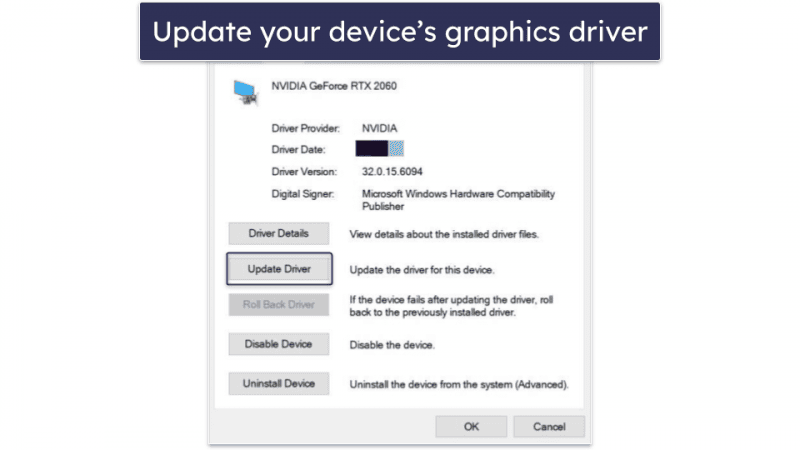
Yes, essential system updates you might be missing can definitely affect Roblox performance. Outdated operating system patches and, crucially, old graphics drivers can lead to compatibility issues, inefficient resource handling, and reduced frame rates. Always ensure your Windows or macOS is fully updated. For your graphics card, download the latest drivers directly from the manufacturer's website (NVIDIA, AMD, Intel) to ensure optimal performance and stability. These updates often include performance improvements specifically for games like Roblox.
What are some common third-party software conflicts that cause Roblox lag?
Common third-party software conflicts that cause Roblox lag often include aggressive antivirus programs, firewalls, and VPNs. Antivirus software might overzealously scan Roblox's processes, slowing it down. Firewalls can block necessary connections. VPNs reroute your internet traffic, increasing latency. Other potential conflicts can arise from overlay applications (like Discord or game launchers), or even certain browser extensions. Temporarily disabling these one by one can help you identify if a specific program is interfering with Roblox's performance and causing unexpected lag.
It's Friday night, the kids are asleep, and you've finally got an hour to jump into your favorite Roblox experience, connect with friends, or dive into a new world. But then it hits: the dreaded lag. Your character teleports, actions don't register, and the game becomes an unplayable slideshow. You might find yourself muttering, "Why is my Roblox lagging for no reason? My internet is fine!" If this sounds familiar, you're not alone. For busy gamers balancing work and life, precious gaming time shouldn't be spent wrestling with technical issues. Recent US gaming stats show that 87% of gamers play regularly, often dedicating 10 or more hours a week to their passion, seeking relaxation, social connection, and skill-building. When Roblox, a platform celebrated for its vast social play and creative freedom, stutters, it detracts from that valuable experience.
This article is your practical guide to understanding and fixing those mysterious Roblox lag spikes. We'll cut through the confusion, offering clear, actionable steps that address common pain points for players like you. Whether it's your internet, device settings, or even Roblox's own servers acting up, we've got the solutions. Let's get your Roblox experience back to being smooth, fun, and lag-free, allowing you to make the most of your gaming moments.
What are the common causes for Roblox lagging even when it seems fine?
When you ask "why is my Roblox lagging for no reason," it often means the reason isn't immediately obvious. Many underlying factors can contribute to Roblox performance issues, making it feel like the lag is unprovoked. The most common culprits include an unstable internet connection, even if your speed test looks good, or an overburdened device struggling to keep up. Sometimes, the problem lies with the specific Roblox game server you're on, or simply too many background applications hogging your computer's resources. Identifying the true source is the first step to a smooth fix.
How can my internet connection impact Roblox performance?
Your internet connection is perhaps the most frequent cause of Roblox lag, even if your overall speed appears decent. Roblox, like many online games, is highly sensitive to network stability, not just raw bandwidth. High latency, packet loss, and Wi-Fi interference can all lead to significant lag. Latency, measured in milliseconds (ms), is the time it takes for data to travel from your device to the Roblox server and back. High latency means delays in your actions registering. Packet loss occurs when data packets fail to reach their destination, resulting in visual stutters or even disconnections. Wireless connections, while convenient, are more prone to interference from other devices, walls, or even your neighbors' Wi-Fi, which can degrade stability. A wired Ethernet connection offers the most consistent and reliable network performance.
What device settings should I check to reduce Roblox lag?
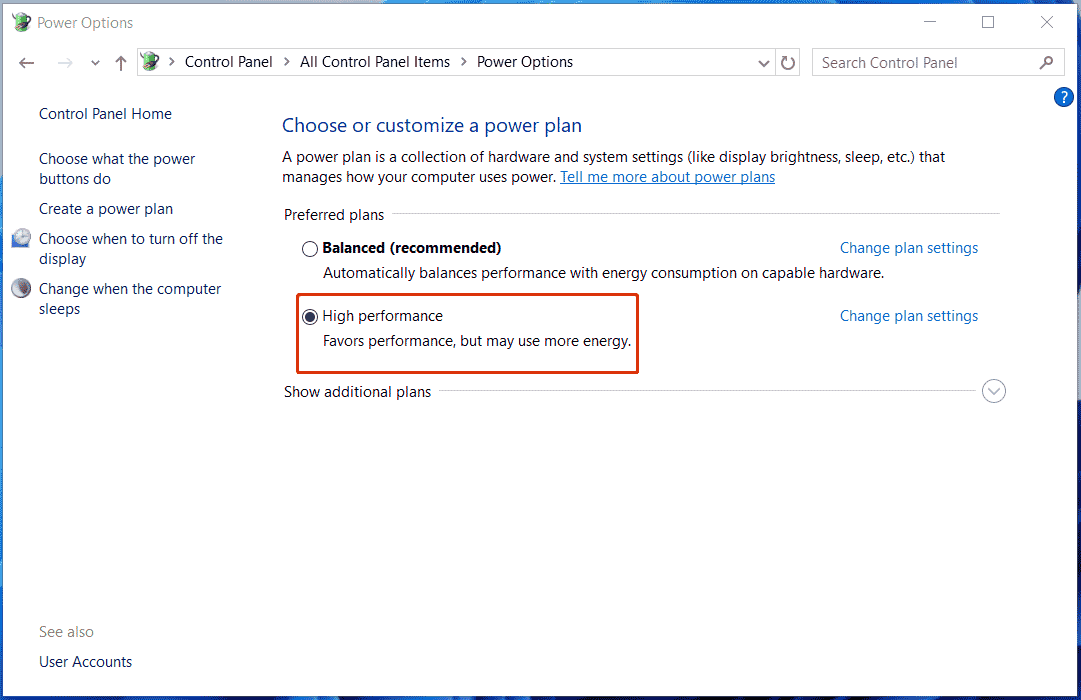
Your device's settings play a crucial role in Roblox performance. First, ensure your operating system and graphics drivers are up to date. Outdated drivers can lead to inefficient resource management. Check your device's power settings; high-performance mode ensures your CPU and GPU aren't throttling back. On PC, open Task Manager (Ctrl+Shift+Esc) to monitor CPU, GPU, and RAM usage while playing Roblox. If any resource is consistently at 90-100%, it's a bottleneck. For mobile, ensure you have sufficient free storage, as full devices can slow down significantly. Disabling background app refresh for non-essential apps can also free up valuable processing power for Roblox.
Are Roblox servers themselves causing the lag?
Yes, sometimes the issue truly isn't on your end. Roblox servers can experience high loads, maintenance, or regional outages, leading to widespread lag for many players. This is especially true for popular experiences that might be hosting thousands of players simultaneously. If you notice lag across multiple Roblox games, or if friends in different locations are also reporting issues, it's a strong indicator that the problem might be server-side. You can check third-party websites like Downdetector or official Roblox status pages on social media for reports of service disruptions. Unfortunately, if it's a Roblox server issue, the best solution is usually patience until they resolve it.
How do in-game graphics settings affect lag, and what's optimal?
Roblox's in-game graphics settings are a significant factor in performance, especially for devices with less powerful hardware. Higher graphics quality, shadow detail, and render distance demand more from your graphics card and processor. If your device is struggling, it will manifest as lower frame rates and lag. To optimize, access the in-game settings (usually by pressing Esc and going to Settings). Look for the 'Graphics Mode' and 'Graphics Quality' sliders. Set 'Graphics Mode' to 'Manual' and then gradually reduce the 'Graphics Quality' slider. Start with a lower setting and slowly increase it until you find a balance between visual fidelity and smooth performance. Disabling features like 'Full-Screen' and ensuring 'Performance Stats' are off can also help minimally.
Could background applications be slowing down my Roblox?
Absolutely. Background applications, even seemingly innocent ones, can consume significant CPU, RAM, and network bandwidth, directly impacting Roblox's performance. Things like web browsers with many tabs open, streaming services, video editing software, large downloads, or even other games running in the background can silently steal resources your Roblox game needs. Before launching Roblox, take a moment to close any unnecessary programs. Use Task Manager on Windows or Activity Monitor on macOS to identify and shut down resource-intensive applications. On mobile, clear recent apps to ensure they aren't running in the background. This simple step often provides a noticeable boost in gameplay fluidity.
When should I consider hardware upgrades for better Roblox play?
Considering hardware upgrades becomes relevant when you've exhausted all software and network troubleshooting steps, and your device still consistently struggles to run Roblox smoothly. If your CPU, GPU, or RAM usage consistently maxes out while playing, it's a clear sign of a hardware bottleneck. For PC gamers, upgrading your RAM (to at least 8GB, ideally 16GB), a dedicated graphics card (even an entry-level one makes a huge difference over integrated graphics), or a faster processor can dramatically improve performance. For mobile gamers, if your device is several years old, its processor might simply not be capable of handling newer, more complex Roblox experiences. Budget-friendly upgrades for PC might involve a used GPU or additional RAM, offering significant value for money without breaking the bank. Remember that gaming trends this month often feature increasingly complex experiences, which demand more from your hardware.
How do I optimize my network specifically for Roblox?
Optimizing your network specifically for Roblox involves a few key steps beyond just a fast connection. First, if possible, switch from Wi-Fi to a wired Ethernet connection. This eliminates wireless interference and provides a stable data flow. If Wi-Fi is your only option, ensure your router is in a central location, free from obstructions, and consider upgrading to a newer router that supports Wi-Fi 5 or Wi-Fi 6 standards for better performance. Restart your router and modem regularly (once a week is a good habit) to clear their caches and refresh your connection. You might also want to try changing your DNS servers to a faster public DNS like Google DNS or Cloudflare DNS, which can sometimes improve connection speed and stability. Ensure no other devices on your home network are consuming excessive bandwidth (e.g., streaming 4K video, large downloads) while you're playing. For a dedicated setup, quality of service (QoS) settings on your router can prioritize gaming traffic.
What software conflicts might be making Roblox lag?
Certain software programs can inadvertently conflict with Roblox, causing lag or crashes. Antivirus software, firewalls, and VPNs are common culprits. While essential for security and privacy, they can sometimes interfere with network traffic or flag Roblox as a potential threat, slowing it down. Try temporarily disabling your antivirus or firewall to see if it resolves the lag. If it does, you'll need to add Roblox and its related processes as exceptions in your security software. VPNs, while useful, route your internet traffic through external servers, which often increases latency. If you're using a VPN, try disabling it or switching to a server closer to Roblox's data centers to see if performance improves. Other less common conflicts can arise from overlay software (like Discord overlay or Geforce Experience) or even game recording software. Experiment with disabling these one by one to isolate the issue.
How can I maintain a smooth Roblox experience long-term?
Maintaining a smooth Roblox experience requires a proactive approach. Regularly update your operating system, graphics drivers, and Roblox itself to benefit from performance improvements and bug fixes. Make it a habit to close unnecessary background applications before launching Roblox. Perform routine system maintenance like clearing temporary files and disk cleanup to keep your device clutter-free. Consider a weekly router and modem reboot to refresh your internet connection. On your device, avoid cluttering your desktop with too many icons or running extensive startup programs. For those who enjoy building and creating in Roblox Studio, understanding how to optimize your creations for performance can also prevent lag for players. Staying informed about Roblox updates and community discussions on performance issues can also provide early warnings or solutions. The goal is to create a consistent, optimized environment for your gaming sessions.
Conclusion
Dealing with Roblox lag can be incredibly frustrating, especially when it feels like there's "no reason" for it. But as we've explored, there are almost always underlying factors, from subtle network issues and overburdened hardware to conflicting software and even Roblox server-side problems. By systematically troubleshooting and implementing the tips in this guide, you can reclaim your smooth, enjoyable Roblox experience. Remember, optimizing your gaming setup is an ongoing process, but with these strategies, you're well-equipped to handle most performance hiccups.
What's your biggest gaming challenge when balancing life and play? Comment below!
FAQ Section
Q: Does reinstalling Roblox help with lag?
A: Yes, reinstalling Roblox can sometimes resolve persistent lag by clearing corrupted game files, caches, and ensuring you have a fresh, clean installation. It's a good step to try if other solutions haven't worked.
Q: How much RAM is ideal for Roblox?
A: While Roblox can run on 4GB of RAM, 8GB is generally considered ideal for a smoother experience, especially if you have other applications running. For heavy users or creators, 16GB provides ample headroom.
Q: Can a VPN cause Roblox lag?
A: Yes, a VPN can cause Roblox lag by adding extra hops and encryption to your internet connection, increasing latency. For optimal performance, consider disabling your VPN or connecting to a server geographically closer to Roblox's servers.
Q: Is my internet speed enough for Roblox?
A: Roblox generally doesn't require extremely high internet speeds; around 5-10 Mbps download and 1-2 Mbps upload is usually sufficient. However, stability, low latency, and minimal packet loss are far more important than raw speed for a lag-free experience.
Q: How often should I clear my Roblox cache?
A: Clearing your Roblox cache every few weeks or whenever you notice performance issues can help. It removes temporary files that might accumulate and cause slowdowns over time, keeping your game running efficiently.
Q: Can a full hard drive make Roblox lag?
A: Yes, a nearly full hard drive, especially if it's your primary system drive (C: drive), can significantly slow down your entire computer, including Roblox. Ensure you have at least 15-20% free space for optimal performance.
Identify internet instability as a prime suspect for Roblox lag. Recognize the role of outdated device hardware or drivers. Understand how background applications impact performance. Learn to optimize in-game graphics settings for smoother play. Discover troubleshooting steps for potential Roblox server issues. Implement strategies to clear cache and repair game files. Prioritize wired connections for improved stability. Gain insights into system resource management to prevent bottlenecks.
35



How To Fix Roblox Lag In 2026 14 Solutions That Work How To Fix Roblox Lag 2 672x375 . How To Fix Lag In Roblox Stop Lag In Roblox Fix Roblox Lag YouTube . How To Fix Lag In Roblox Full Guide YouTube . Why Is Roblox Lagging On PC How To Make Roblox Less Laggy Roblox Lagging 5 . HOW TO FIX The Lag On ROBLOX For PC YouTube


How To Fix And Solve Roblox Lagging For No Reason Final Solution . How To FIX ROBLOX LAG Roblox Jailbreak YouTube . Why Is Roblox Lagging On PC How To Make Roblox Less Laggy Roblox Lagging Thumbnail . Why Is Roblox Lagging Here S How To Fix It Fast Dunia Games Optimize Image. How To Fix High Ping Lag Spikes On Roblox PC 2023 YouTube

Fix Roblox Lagging Hard Easy Solutions For Smooth Play Roblox Jitter. How To Fix Roblox Lag Stuttering Performance Issues YouTube . Fix Roblox Lagging Hard Easy Solutions For Smooth Play Roblox Lagging Hard 1.webp. Fix Roblox Lagging Hard Easy Solutions For Smooth Play Roblox Lagging Hard How To Fix.webp. How To Fix Lag In Roblox Easy Guide Remove Lag In Roblox YouTube


How To Fix Roblox Lag In 2026 14 Solutions That Work How To Fix Roblox Lag 1 672x376 . How To Fix Roblox Lag On Laptop YouTube . Why Is Roblox So Laggy Roblox 2.webp. Fix Roblox Lagging Hard Easy Solutions For Smooth Play Fps Boost Roblox 1400x700 . How To Fix Roblox Lag Spikes Lawod How To Fix Roblox Lag Spikes.webp



Why Is Roblox So Laggy Quick Fix Hone Blog Image 13 1024x431 . How To Fix Roblox Lag Issue Windows 11 10 8 7 Fix Roblox Keeps . Why Is My Roblox Game Lagging Due To Internet YouTube . Why Is Roblox So Laggy Reasons Fixes And 4e8c03d8 8443 4de3 A53c . How To Reduce Lag On Roblox In 2026 Easy Guide Fix Roblox Lag With Vpn
Why Is Roblox Lagging On PC How To Make Roblox Less Laggy Roblox Lagging 7 . How To Reduce Lag In Roblox Stop Lagging In 5 Steps Hone Blog Hone.gg Preview Image . How To Fix Roblox Lag In 2026 14 Solutions That Work How To Fix Roblox Lag 3 800x450 . Why Is Roblox So Laggy Quick Fix Hone Blog Why Is Roblox So Laggy Quick Fix . Why Is My Roblox So Laggy Why Is My Roblox So Laggy




How To Message On Roblox 2026 A Quick Guide . Why Is Roblox Not Working June 2026 24 Fixes That Actually Work Why Is Roblox Not Working 2025 24 Fixes That Actually Work 768x512 . How To Reduce Lag On Roblox And Speed Up Play AstrillVPN Blog Why Is Roblox Lagging . What Causes Lag In Roblox Games At Donna Lahti Blog Roblox Lagging On PC 1 1100x608 . How To Fix Roblox Lag In 2026 14 Solutions That Work How To Fix Roblox Lag 3 150x84