Struggling to unleash your creativity on Roblox? This comprehensive guide on how to open Roblox Studio is your ultimate resource. Many gamers, averaging around 36 years old, juggle careers, families, and life responsibilities, yet still crave the relaxation and skill-building that gaming offers. They want straightforward solutions without the hype, allowing them to dive into game development without setup headaches. This article navigates common challenges, from initial download to launching your first project, ensuring you spend less time troubleshooting and more time creating. We cover installation tips, common access issues, and performance optimization, all tailored for the busy adult gamer looking to maximize their creative output in limited free time. Discover how to get Roblox Studio up and running smoothly, so you can join the millions of creators shaping the future of virtual experiences, building new worlds, and connecting with friends through shared digital adventures. Get ready to transform your gaming passion into tangible creations with ease.
How to open Roblox Studio on PC?
To open Roblox Studio on your PC, first ensure it's installed by downloading it from create.roblox.com. Once installed, simply double-click the Roblox Studio icon on your desktop or find it in your Start Menu. Alternatively, log into roblox.com, go to the 'Create' tab, and click 'Start Creating' or 'Edit' on an existing game to launch it directly.
Why is Roblox Studio not opening?
Roblox Studio might not open due to several common reasons: a pending update, internet connectivity issues, corrupted installation files, or interference from your firewall/antivirus. Start by checking your internet, restarting your computer, or running a clean reinstallation. Temporarily disabling your antivirus can also help diagnose if security software is blocking it.
What are the steps to install Roblox Studio?
Installing Roblox Studio is straightforward. Visit create.roblox.com, log into your Roblox account, and click 'Start Creating' to download the installer. Run the downloaded file, then follow the on-screen prompts (typically clicking 'Next' and 'Install'). The process usually takes just a few minutes, after which a desktop shortcut will be available.
Where do I find the Roblox Studio icon?
After installation, the Roblox Studio icon typically appears on your desktop. If not, you can find it by searching for 'Roblox Studio' in your Windows Start Menu (for PC users) or in your Applications folder (for macOS users). Double-clicking this icon will launch the program directly.
Can I open Roblox Studio without Roblox game installed?
Yes, you can open Roblox Studio independently of the Roblox player application. While both are part of the Roblox ecosystem, Studio is a standalone development tool. You don't need the main Roblox game installed or running to launch and use Roblox Studio for creating your experiences.
What is Roblox Studio and why should a busy gamer care about it?
Roblox Studio is a free, powerful game development platform that lets you create your own games and experiences within the Roblox metaverse. For adult gamers who want to unwind creatively, build unique worlds, or even earn some Robux, Studio offers a fantastic outlet. It's a place to express creativity, learn new skills, and connect with a vast community, all while fitting into a busy schedule.
How do I perform the initial download and installation of Roblox Studio?
To start, visit the official Roblox website and log into your Roblox account. Navigate to any game page and look for the '...' icon, then select 'Edit' or visit create.roblox.com. This will prompt a download of the Roblox Studio installer. Once downloaded, run the installer and follow the on-screen instructions, typically clicking 'Next' and 'Install' until completion. It's a straightforward process, often done in minutes, getting you ready to create.
What's the quickest way to launch Roblox Studio once it's installed?
After installation, the quickest way to launch Roblox Studio is by finding its desktop shortcut or searching for "Roblox Studio" in your Windows Start Menu or macOS Applications folder. Double-clicking the icon will open the application directly. Alternatively, logging into your Roblox account on the website and clicking the "Create" tab or "Edit" button on a game page will also automatically launch Studio, connecting it directly to your online account.
My Roblox Studio isn't opening after I click the icon. What should I check first?
If Roblox Studio isn't opening, first ensure your internet connection is stable, as it often needs to verify updates. Next, check if an existing instance is running in the background via Task Manager (Windows) or Activity Monitor (macOS) and close it. A quick restart of your computer can also resolve minor glitches. Finally, ensure your operating system and graphics drivers are up to date, as Roblox Studio frequently updates and requires compatible environments.
Are there any specific system requirements I should know about for a smooth Roblox Studio experience?
While Roblox Studio is relatively lightweight, for a smooth experience, especially when building complex games, aim for at least Windows 7/macOS 10.10, an Intel Core i3 or equivalent, 4GB RAM, and a graphics card with DirectX 9/OpenGL 2.1 support. More RAM and a dedicated GPU significantly improve performance, crucial for adult gamers who value efficiency and seamless workflow during their limited creative time.
How can I keep Roblox Studio updated to avoid opening issues?
Roblox Studio typically handles updates automatically when you launch it, ensuring you always have the latest features and bug fixes. If you encounter issues, manually check for updates by going to 'File' > 'Beta Features' or restarting Studio. Regular updates prevent compatibility problems and often resolve common opening glitches, making your creative process smoother and more secure. Keeping your operating system updated also helps.
What are some common reasons Roblox Studio might fail to open and how do I fix them?
Common reasons for Roblox Studio not opening include corrupted installation files, pending software updates, firewall/antivirus blocks, or insufficient system resources. To fix: try reinstalling Studio, temporarily disabling your firewall/antivirus, clearing Roblox cache, or ensuring your PC meets minimum specs. These steps address the majority of startup failures, getting you back to building your immersive virtual worlds.
Remember that feeling when you finally carve out some personal time after a long day of work, managing family, and handling all of life's demands? For many adult gamers, that precious window is for diving into virtual worlds, unwinding, and perhaps even building something new. You've heard about Roblox, maybe your kids play it, or you've seen the incredible creativity flourishing there. Now, you're ready to jump in and build your own experience, but the first hurdle often appears: figuring out how to open Roblox Studio and get started without a fuss. You're not alone. Many passionate US gamers, a significant 87% of whom game regularly, often for 10+ hours a week, want clear, concise guidance that respects their limited time.
This isn't about hype; it's about practical solutions. We're here to help you seamlessly navigate the process of getting Roblox Studio up and running, so you can spend less time wrestling with technical issues and more time expressing your creativity. Whether you're looking to build a cozy social game to relax with friends, a challenging obstacle course, or just explore the mechanics of game design, Roblox Studio is your gateway. This comprehensive guide will walk you through everything from installation to troubleshooting, ensuring you can open Roblox Studio with confidence and start building your next digital masterpiece. Let's get you set up to create incredible games and join the thriving community of Roblox developers.
How Do I Get Roblox Studio on My Computer? Download and Install
Getting Roblox Studio onto your computer is the very first step, and thankfully, it's a straightforward process designed to be accessible for creators of all levels. You don't need to navigate complex menus or obscure websites. The easiest and safest way to acquire Roblox Studio is directly through the official Roblox platform.
Here's a simple, numbered guide to get you started:
- Log In to Your Roblox Account: Open your web browser and go to the official Roblox website (roblox.com). Make sure you're logged into the account you intend to use for development. If you don't have one, it's quick and free to create.
- Navigate to the Create Page: Once logged in, click on the 'Create' tab at the top of the Roblox website. This is your hub for all things related to building and managing your experiences.
- Start Creating: On the Create page, you'll see a prominent button that says 'Start Creating' or similar. Clicking this button will prompt a small download. Roblox will recognize if you don't have Studio installed and offer you the download.
- Download the Installer: A file named 'RobloxStudioInstaller.exe' (for Windows) or 'RobloxStudio.dmg' (for macOS) will begin downloading. This file is typically small and downloads quickly.
- Run the Installer: Locate the downloaded installer file (usually in your 'Downloads' folder) and double-click it to run.
- Follow On-Screen Prompts: The installer will guide you through the setup process. You'll typically just need to click 'Next,' agree to any terms, and then 'Install.' The installation itself is usually fast, taking only a few minutes depending on your system.
Once the installation is complete, a Roblox Studio icon will appear on your desktop or in your applications folder. You're now ready for the next step: launching your new creative workspace!
What Are the System Requirements for Running Roblox Studio Smoothly?
While Roblox Studio is remarkably optimized, especially considering its robust capabilities, ensuring your system meets recommended specifications can significantly impact your creative workflow. For adult gamers who value efficiency and want to maximize their limited creative time, avoiding performance bottlenecks is key. You don't need a top-tier gaming rig, but a capable machine will make your experience much smoother.
Here are the recommended system requirements for a seamless Roblox Studio experience:
- Operating System: Windows 7/8/8.1/10/11 (64-bit) or macOS 10.10 (Yosemite) or higher. Keeping your OS updated is crucial, as Roblox Studio frequently updates to leverage the latest system capabilities.
- Processor: An Intel Core i3 or i5, or an AMD equivalent, is generally sufficient. For more complex projects or multitasking, an i7 or equivalent is beneficial.
- Memory (RAM): 4 GB of RAM is the minimum, but 8 GB or more is highly recommended. More RAM allows you to run Studio with multiple tabs, scripts, and assets without slowdowns.
- Graphics Card: A graphics card that supports DirectX 9 and Shader Model 2.0 or higher. For Mac, an OpenGL 2.1 compatible card. Integrated graphics (like Intel HD Graphics 4000 or newer) can work, but a dedicated GPU (NVIDIA GeForce 400 series or AMD Radeon HD 6000 series or newer) will provide a much smoother experience, especially with larger projects.
- Storage: At least 20 GB of free hard drive space. An SSD (Solid State Drive) will significantly reduce loading times for Studio itself and your projects.
- Internet Connection: A stable internet connection of at least 4-8 Mbps is recommended for downloading assets, publishing games, and Studio updates.
Meeting these recommendations will help prevent frustrating crashes or lag, allowing you to focus on the fun part: creating amazing games for the global Roblox community.
How Do I Launch Roblox Studio After Installation? Direct and Browser Methods
Once Roblox Studio is installed, you have a couple of convenient ways to launch it, depending on your preference and workflow. Both methods are quick and get you into your creative environment efficiently, which is perfect for busy adults balancing their passion with daily responsibilities.
Method 1: Direct Launch via Desktop Icon or Start Menu (Recommended for quick access)
This is often the fastest way to open Roblox Studio if you know you want to start a new project or work on an existing one directly. It bypasses the need to go through the Roblox website every time.
- Locate the Icon: Find the Roblox Studio icon on your desktop. It typically looks like a blue square with the Roblox 'R' logo. If it's not on your desktop, search for 'Roblox Studio' in your Windows Start Menu (or Finder for macOS users).
- Double-Click to Open: Simply double-click the icon. Roblox Studio will launch and present you with the 'My Games' screen, where you can choose to open recent projects, start a new template, or browse your existing creations.
Method 2: Launch via the Roblox Website (Useful for editing specific games)
This method is particularly useful if you want to jump directly into editing a specific game you've already created or a public game you have permission to edit.
- Log In to Roblox Website: Go to roblox.com and log into your account.
- Go to the Create Page: Click the 'Create' tab at the top of the page.
- Select Your Game: On the 'Creations' page, find the game you wish to edit. Hover over it and click on the '...' (three dots) icon that appears.
- Choose 'Edit': From the dropdown menu, select 'Edit.' Your browser will then send a command to launch Roblox Studio and open that specific game project. If Studio isn't already running, it will launch first, then open your project.
Both methods will connect you to your Roblox account within Studio, allowing you to seamlessly save and publish your creations. Choose the method that best suits your immediate needs!
Why Won't My Roblox Studio Open? Common Troubleshooting Steps
It's incredibly frustrating when you've finally set aside time to create, and Roblox Studio decides not to cooperate. For adult gamers, this kind of technical snag can derail an entire creative session. Don't worry, many common opening issues have simple fixes. Here's a breakdown of why Studio might not be opening and how to resolve it.
- Internet Connection Issues: Roblox Studio requires an active internet connection to verify your account, download updates, and access assets. If your internet is spotty, it might prevent launch.
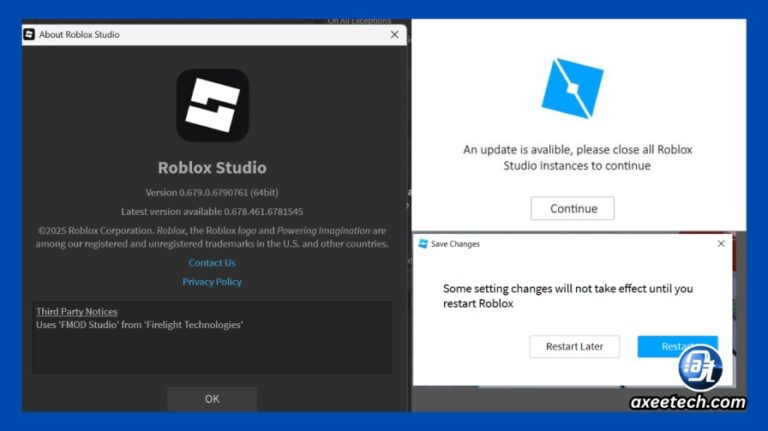
- Pending Updates: Roblox Studio frequently updates to introduce new features, fix bugs, and improve security. If your Studio hasn't updated, it might refuse to launch.
- Corrupted Installation Files: Sometimes, files can get damaged during download or due to system errors, preventing Studio from launching correctly.
- Firewall or Antivirus Interference: Your security software might mistakenly identify Roblox Studio as a threat and block its execution.
- Conflicting Background Processes: Other demanding applications or background processes might be consuming too many system resources, leaving none for Studio to launch.
- Outdated Graphics Drivers: Outdated display drivers can cause compatibility issues with modern software.
Fix: Check your Wi-Fi or Ethernet connection. Try opening a website to confirm connectivity. A quick router restart can often help.
Fix: Usually, Studio prompts for updates automatically. If not, try launching it from the Roblox website's 'Create' section, which often forces an update. Alternatively, check for an updater process in your Task Manager (Windows) or Activity Monitor (macOS).
Fix: The most effective solution here is to perform a clean reinstallation. Uninstall Roblox Studio from your computer's 'Add or Remove Programs' (Windows) or by dragging the app to 'Trash' (macOS), then redownload and reinstall using the steps outlined earlier.
Fix: Temporarily disable your antivirus or firewall and try launching Studio. If it works, add Roblox Studio (and its associated processes) as an exception in your security software settings. Remember to re-enable your security afterwards.
Fix: Open Task Manager (Ctrl+Shift+Esc on Windows) or Activity Monitor (Command+Space, type 'Activity Monitor' on macOS) and close any unnecessary or resource-intensive applications. Ensure no rogue Roblox Studio instances are running.
Fix: Update your graphics drivers. For NVIDIA, AMD, or Intel, visit their respective websites and download the latest drivers for your specific GPU model.
By systematically going through these troubleshooting steps, you can quickly diagnose and fix most issues preventing Roblox Studio from opening, getting you back to creating without unnecessary delays.
How Can I Optimize Roblox Studio for Better Performance?
For adult gamers who appreciate a smooth workflow and hate lag, optimizing Roblox Studio's performance is crucial. While a powerful PC helps, there are several settings and practices you can implement to ensure Studio runs as efficiently as possible, especially when working on larger or more complex projects. This means less waiting and more creating, maximizing your limited free time.
Here are key strategies to optimize Roblox Studio performance:
- Graphics Quality Settings: Within Studio, you can adjust the rendering quality. Go to 'File' > 'Studio Settings' > 'Rendering' > 'Graphics Mode.' Switching from 'Automatic' to 'OpenGL' or 'Direct3D11' (whichever performs better for your system) and reducing the 'Edit Quality Level' can significantly boost performance.
- Disable Unnecessary Plugins: Plugins can be incredibly useful, but too many active ones can consume resources. Go to 'Plugins' tab and disable any you're not actively using. Only keep essential plugins enabled.
- Close Other Applications: Before launching Studio, close any resource-intensive applications like web browsers with many tabs, video editors, or other games. This frees up RAM and CPU cycles for Studio.
- Use Efficient Building Practices: When designing your game, try to optimize your models and parts. For instance, avoid excessive use of CSG operations (unioning and negating parts) as they can be performance-heavy. Opt for simpler geometry where possible, and use meshes for complex objects.
- Reduce Parts and Instances: The more parts and instances (individual objects) in your game world, the more Studio has to render. Consolidate parts where possible, use MeshParts instead of many individual parts for complex shapes, and consider instancing for repetitive objects.
- Level of Detail (LOD) for Meshes: If using custom meshes, implementing LOD can help. Lower resolution models are displayed when the player is far away, improving performance.
- Clean Up Unused Assets: Over time, your game might accumulate unused images, sounds, or models. Regularly clean out your 'Game Explorer' to remove these, reducing project size and load times.
- Update Graphics Drivers: As mentioned earlier, keeping your GPU drivers up-to-date ensures optimal compatibility and performance with the latest Studio versions.
By implementing these optimization techniques, you'll experience a much smoother and more responsive Roblox Studio, making your game development journey more enjoyable and productive.
Is Roblox Studio Free to Use, and What Can I Create With It?
One of the most appealing aspects of Roblox Studio, especially for budget-conscious adult gamers, is that it is absolutely free to download and use. There are no subscription fees, no hidden costs to access its core features, and no paywalls preventing you from creating and publishing your games. This makes it an incredibly accessible platform for anyone looking to dip their toes into game development, learn new skills, or simply express their creativity without financial barriers.
So, what exactly can you create with this powerful, free tool? The possibilities are nearly limitless, mirroring the diverse interests of the US gaming community, which increasingly embraces social and creative experiences:
- Adventure Games: Design sprawling open worlds, intricate quest lines, and thrilling challenges.
- Simulator Games: Create popular simulators, from 'Tycoon' games where players build empires to 'Clicker' games focused on resource gathering.
- Obby (Obstacle Course) Games: Craft challenging and creative obstacle courses that test players' parkour skills. These are hugely popular for social play.
- Role-Playing Games (RPGs): Build immersive worlds with unique characters, lore, and interactive storytelling.
- Social Hangouts: Design virtual spaces where players can simply chat, explore, and connect with friends, much like popular social gaming trends today.
- Educational Games: Create interactive experiences that teach coding, history, science, or any other subject in an engaging way.
- Competitive Games: Develop arenas for player-versus-player combat, racing games, or sports simulations.
- Virtual Events and Experiences: Roblox Studio isn't just for games; you can create interactive concerts, art galleries, or themed social events.
With its intuitive interface and powerful scripting language (Lua), Roblox Studio empowers you to build anything you can imagine. It’s a fantastic platform for creative expression, skill development, and connecting with a massive global audience, making it a perfect fit for adult gamers seeking a meaningful and engaging hobby.
How Do I Start My First Project in Roblox Studio?
You've successfully installed and opened Roblox Studio – congratulations! Now comes the exciting part: starting your very first project. This step-by-step guide will help you navigate the initial interface and choose the right template to kick off your game development journey.
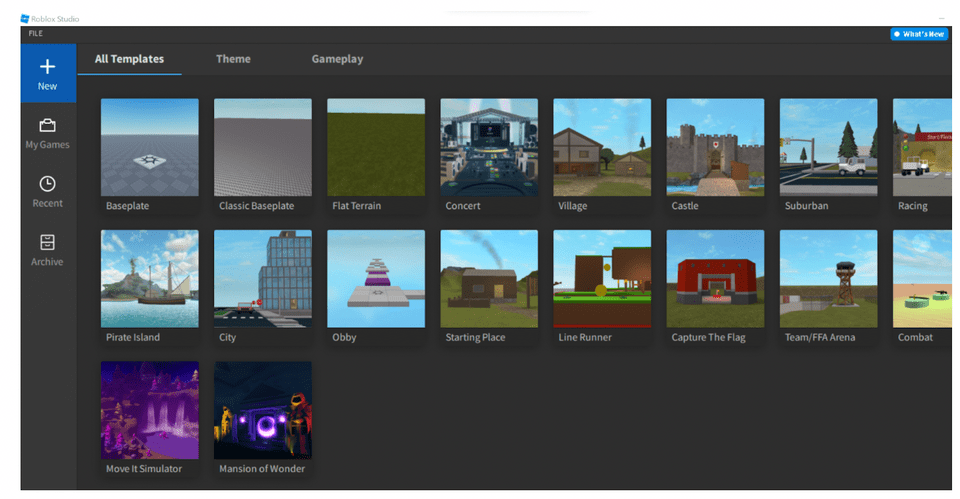
When you first launch Roblox Studio, you'll be greeted by the 'New' tab, which offers several options:
- Choosing a Template:
Roblox Studio provides a variety of templates to give you a head start. These templates are pre-built environments that you can customize. They're perfect for beginners as they offer a foundation without requiring you to build everything from scratch.
- Baseplate: This is the simplest template – just a flat, infinite grey baseplate. It's ideal if you want complete control and prefer to build everything from scratch.
- Classic Baseplate: Similar to Baseplate but often includes a spawn point and basic sky.
- Flat Terrain: A slightly more complex base, offering a vast, flat terrain generated with different textures.
- Village, City, Castle, etc.: These templates come with pre-built structures and environments. They are excellent for exploring how professional games are structured or for quickly prototyping an idea.
For your very first project, we recommend starting with a Classic Baseplate or a Flat Terrain. This gives you a clean canvas but also provides some basic elements to work with.
- Opening the Template:
Click on your chosen template. Studio will load the environment, and you'll see the 3D workspace. This is where the magic happens!
- Familiarizing with the Interface:
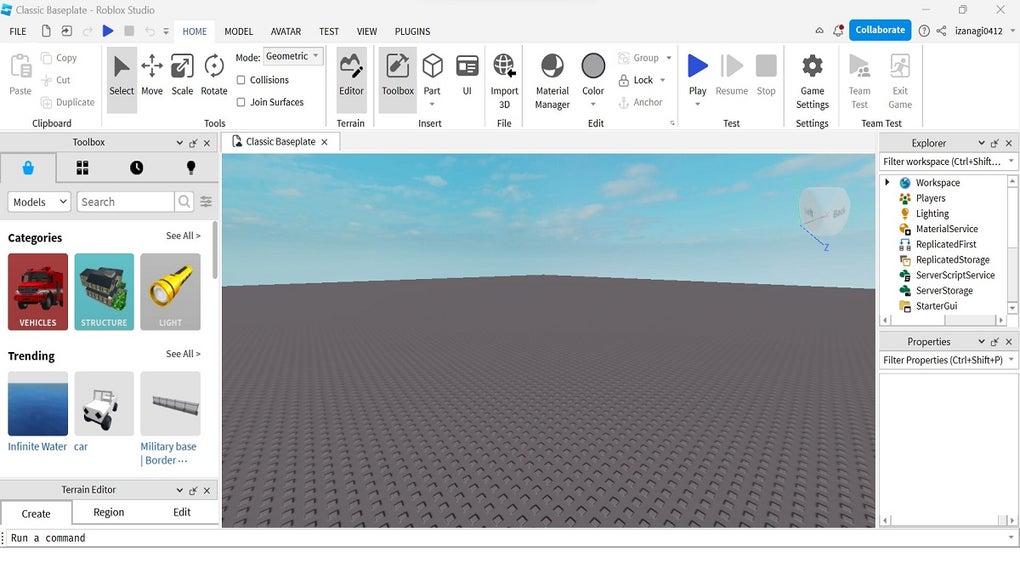
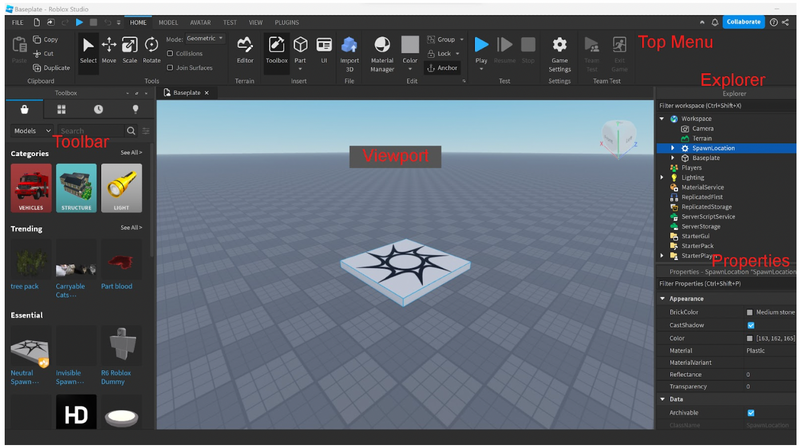
Don't be overwhelmed by the various windows. Key panels you'll often use include:
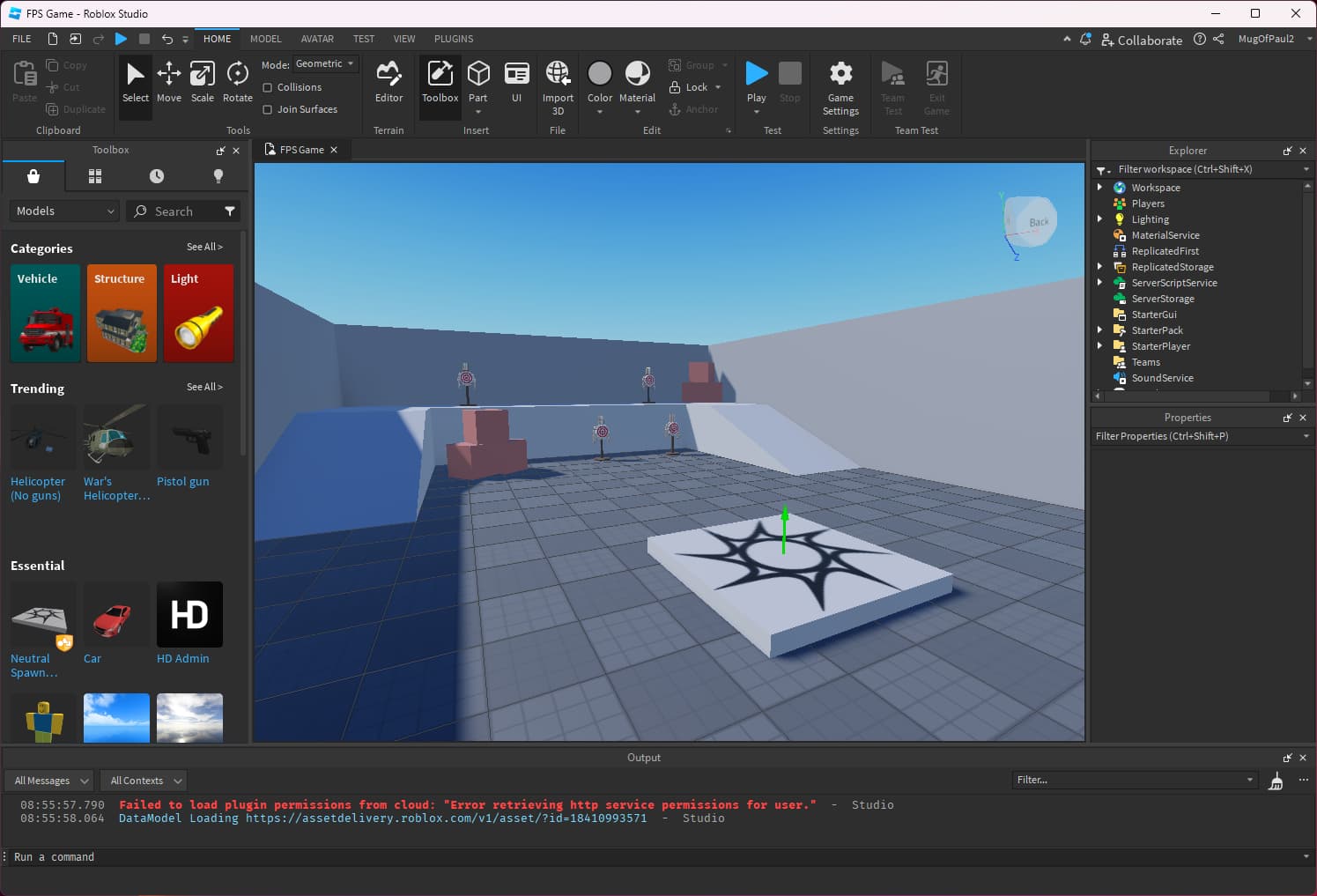
- Explorer: (Usually on the right) This shows all the objects in your game, organized hierarchically. You can select, group, and manage parts here.
- Properties: (Usually below Explorer) This panel displays the adjustable attributes of any selected object, such as its size, color, position, and material.
- Output: (Usually at the bottom) This window shows messages from your scripts, errors, and Studio itself, crucial for debugging.
- Toolbox: (Accessible from the 'View' tab) A treasure trove of free models, decals, audio, and more, contributed by the Roblox community. Great for quickly adding assets.
- Placing Your First Part:
Go to the 'Home' tab at the top. Click on the 'Part' button. A simple brick will appear in your workspace. You can then use the 'Move,' 'Scale,' and 'Rotate' tools (also in the 'Home' tab) to manipulate it. This is the fundamental building block of every Roblox game.
- Testing Your Game:
In the 'Home' tab, click the 'Play' button. This will spawn your avatar into your game, allowing you to walk around and test your creations. Click 'Stop' to return to editing mode.
Starting with these basics will give you a solid foundation. Don't be afraid to experiment and explore the tools. The best way to learn is by doing!
What If Roblox Studio Gets Stuck Updating?
A common pain point for any software user, including adult gamers trying to manage their limited time, is when an application gets stuck during an update. Roblox Studio, while generally reliable, can sometimes encounter this issue. When it does, your creative flow grinds to a halt. Here's how to troubleshoot and resolve a stuck update.
- Check Your Internet Connection:
The most frequent cause of a stuck update is an unstable or slow internet connection. Studio needs to download files, and if that connection drops or is too slow, the update can stall.
Fix: Verify your internet. Try opening a few websites or running a speed test. If your connection is weak, try restarting your router or switching to a more stable connection.
- Restart Your Computer:
A simple restart can often clear up temporary software glitches, including update hang-ups. It closes all running processes, including any stuck Studio updater components.
Fix: Save any open work in other applications, then perform a full system restart.
- End Roblox Studio Processes in Task Manager/Activity Monitor:
Sometimes, an old instance of Studio or an updater process might be stuck in the background, preventing a new update from proceeding.
Fix (Windows): Press Ctrl+Shift+Esc to open Task Manager. Look for any processes named 'Roblox Studio,' 'RobloxStudioInstaller,' or 'RobloxPlayerLauncher.' Select them and click 'End task.'
Fix (macOS): Press Command+Space, type 'Activity Monitor,' and press Enter. Search for similar Roblox-related processes, select them, and click the 'X' button to force quit. - Clear Roblox Cache:
Corrupted cache files can sometimes interfere with updates. Clearing them forces Studio to download fresh data.
Fix (Windows): Press Win+R, type '%temp% oblox' and press Enter. Delete all files and folders within that directory. Don't worry, these are temporary files and will be regenerated.
- Temporarily Disable Antivirus/Firewall:
As mentioned in troubleshooting opening issues, security software can sometimes block legitimate update processes.
Fix: Temporarily disable your antivirus or firewall, then try launching Studio again. If it updates, add Studio as an exception to your security software.
- Perform a Clean Reinstallation:
If all else fails, a fresh installation is often the most reliable solution. This ensures all files are up-to-date and uncorrupted.
Fix: Uninstall Roblox Studio completely from your system, then download the latest installer from create.roblox.com and reinstall it.
By following these steps, you should be able to unstick your Roblox Studio update and get back to building your incredible virtual worlds.
Where Can I Find Learning Resources for Roblox Studio?
Learning a new creative tool, especially one as powerful as Roblox Studio, can feel daunting. But for adult gamers keen on skill-building and staying current without hype, there are fantastic, accessible resources available. The Roblox developer community is vast and incredibly supportive, offering many avenues to learn, grow, and troubleshoot. Leveraging these resources efficiently means you can maximize your learning curve in your limited free time.
Here are some of the best places to find learning resources for Roblox Studio:
- Roblox Creator Documentation (Developer Hub): This is the official and most authoritative source. It's a comprehensive library of guides, tutorials, API references, and best practices. Whether you're a beginner learning Lua scripting or an experienced developer looking for specific functions, the Developer Hub has it. It's constantly updated with the latest features and information.
Link: create.roblox.com/docs - YouTube Tutorials: The visual nature of video tutorials makes them incredibly effective for learning game development. Many experienced Roblox developers and content creators publish high-quality, step-by-step guides. Search for channels like 'AlvinBlox,' 'TheDevKing,' or 'RoBuilder' for excellent beginner-friendly content, often covering specific game mechanics or scripting concepts.
- Roblox Developer Forum: This is an official forum where developers can ask questions, share insights, get feedback, and collaborate. It's a great place to search for solutions to specific problems or to connect with other creators who share your interests.
Link: devforum.roblox.com - Roblox Education Hub: Targeted towards educators but also highly valuable for self-learners, this section offers structured courses and lesson plans for learning Roblox Studio and Lua programming. It's an excellent way to get a more formalized learning experience.
Link: education.roblox.com - Discord Communities: Many large Roblox development communities exist on Discord. These servers offer real-time chat, support, and collaboration opportunities. Search for popular Roblox development Discord servers to join and engage with fellow creators.
- In-Studio Templates and Examples: Don't underestimate the power of reverse-engineering! Open up some of Roblox Studio's official templates or free models from the Toolbox and examine how they are built, how scripts are written, and how different parts interact. It's a hands-on way to learn by deconstructing existing creations.
By utilizing a combination of these resources, you can effectively learn Roblox Studio at your own pace, tackle new challenges, and continually expand your game development skills, transforming your gaming passion into tangible creations.
How Do I Save and Publish My Creations on Roblox?
After pouring your creative energy into building a game in Roblox Studio, the next crucial step is to save your work and, eventually, publish it for the world to see. This process is designed to be straightforward, ensuring your efforts aren't lost and that your game can reach the millions of players on Roblox. For adult gamers, this means easily sharing their skill-building and social creations without unnecessary complications.
Saving Your Project:
Saving your work frequently is paramount to avoid losing progress due to crashes or unexpected shutdowns. There are two primary ways to save in Roblox Studio:
- Save to File: This saves your game as a local file (.rbxl or .rbxlx) on your computer. It's excellent for backups or working offline.
- Go to 'File' > 'Save To File' or 'Save To File As...'.
- Choose a location on your computer and give your game a recognizable name.
- Save to Roblox (Cloud Save): This saves your game directly to the Roblox cloud, making it accessible from any device where you log into Studio with your account. It's highly recommended as it ensures your game is backed up online.
- Go to 'File' > 'Save To Roblox' or 'Save To Roblox As...'.
- If saving for the first time, you'll be prompted to give your game a name, description, and choose the creator (you or a group).
- This also saves a local copy, but the primary version resides in the cloud.
Publishing Your Game:
Publishing your game makes it available for others to play on the Roblox platform. You can choose whether it's public (playable by everyone) or private (only playable by you and selected friends).
- Go to 'File' > 'Publish To Roblox': This option saves your current project to the Roblox cloud and also makes it available for playing.
- Game Settings: Before or after publishing, it's vital to configure your game's settings. Go to 'Home' tab > 'Game Settings'. Here you can:
- Basic Info: Change your game's name and description.
- Permissions: Decide if your game is 'Public' (visible and playable by everyone) or 'Private' (only you can play it, or specific friends/groups if configured).
- Monetization: Set up developer products, game passes, or access fees if you plan to monetize your game.
- Security: Adjust settings related to scripts and HTTP services.
- Places: Manage different 'places' (levels or areas) within your game experience.
- Making Your Game Public: To let others play your game, go to 'Game Settings' > 'Permissions' and ensure your game's status is set to 'Public.' Click 'Save.'
Once published and set to public, your game will appear on your Roblox profile and be discoverable by other players. Remember, you can always update your game in Studio, and then use 'Publish To Roblox' again to push those changes live. It's an ongoing process of creation, saving, and sharing with the world!
Conclusion
Navigating the initial steps of opening Roblox Studio might have seemed like another chore to add to your already busy life, but as we've seen, it's a manageable and rewarding endeavor. For the 60% of US gamers balancing careers and families, platforms like Roblox Studio offer a unique blend of relaxation, skill-building, and social connection. By following the clear steps for downloading, installing, and launching, along with understanding how to troubleshoot common snags, you're now empowered to transform your gaming passion into tangible, interactive experiences.
You're not just playing games; you're becoming a creator, shaping virtual worlds that can entertain, educate, and connect people. This journey into game development respects your time and delivers immense value, allowing you to stay current with creative trends without unnecessary hype. So, go forth, build, experiment, and share your unique visions with the vibrant Roblox community. The metaverse awaits your touch.
What's your biggest gaming or creation challenge right now? Share your thoughts and questions in the comments below!
FAQ Section
Can I develop Roblox games on a mobile device?
No, Roblox Studio is a PC and Mac application only. While you can play Roblox games on mobile devices, game creation requires the full functionality of Studio on a desktop or laptop computer.
Is Roblox Studio safe to download?
Yes, downloading Roblox Studio from the official Roblox website (create.roblox.com) is completely safe. Always ensure you're getting it from the official source to avoid malicious software.
How often does Roblox Studio update?
Roblox Studio typically updates weekly, often on Wednesdays. These updates bring new features, bug fixes, and performance improvements, ensuring you always have the latest tools at your disposal.
What kind of games are popular to make in Roblox Studio right now?
Currently, social hangout games, creative simulators (like
Learn how to download and install Roblox Studio efficiently. Understand direct launch methods for quick access. Troubleshoot common opening issues like updates or missing files. Optimize settings for better performance. Discover how to start your first project easily. Get tips for balancing game creation with daily life. Connect with the Roblox developer community. Stay updated on the latest Studio features and trends for adult gamers.
35



Roblox Studio Webp. How To Open Output In Roblox Studio YouTube . Roblox Studio Untuk Windows Unduh Roblox Studio How To Play Roblox Studio For Windows . How To Make A Roblox Game Step By Step Guide Launch Roblox. How To Find And Open Toolbox In Roblox Studio YouTube


Output Roblox Studio H Ng D N Chi Ti T V M O C I Thi N Tr I Nghi M . How To Find And Display EXPLORER WINDOW And PROPERTIES WINDOW Roblox . How To Use Roblox Studio 6 Steps With Pictures WikiHow Use Roblox Studio Step 6 . How To Open Properties In Roblox Studio 2025 YouTube . How To Update Roblox On All Platforms 2026 Guide AxeeTech Roblox Studio Update Prompt Creator 768x431



How To Install Roblox On A Computer Easily 2026 Guide . How To Use Roblox Studio With Pictures WikiHow Aid2429397 V4 728px Use Roblox Studio Step 27 . Complete Beginner Guide To Roblox Studio YouTube . Get Roblox Studio Your Easy Guide Step By Step Roblox Studio Download . How To Find And Open Properties In Roblox Studio YouTube




Roblox Studio Detailed Beginner S Guide For Roblox Game Creator Screen Shot 2024 10 01 At 2.46.12 PM . How To Use Roblox Studio A Step By Step Guide Use Roblox Studio Step 50 . Can You Develop Roblox Games On Your Phone In 2026 Roblox 5 . How To Install Roblox On A Computer Easily 2026 Guide . How To Use Roblox Studio A Step By Step Guide V4 460px Use Roblox Studio Step 5 Version 2


The Absolute Basics Of Roblox Studio Roblox Studio For Beginners . How To Get Roblox Studio 4 Easy Steps Screen Shot 2022 08 09 At 7.16.05 AM . How To Install Roblox Studio C5148 1920 . Roblox Studio Tutorial How To Install Roblox Studio 2026 UPDATED . Open Developer Console In Roblox Studio How To Roblox Studio YouTube


Roblox Studio Detailed Beginner S Guide For Roblox Game Creator Screen Shot 2022 12 20 At 1.49.27 PM . How To Install Roblox Studio In 2026 Easy Step By Step Guide YouTube . How To Install Roblox On A Computer Easily 2026 Guide Install Roblox Step 30 . How To Publish A Roblox Game 2026 Complete Roblox Studio Tutorial . How To Publish A Game On Roblox In 2026 Roblox YouTube


How To Make A Map In Roblox Studio What Actually Works For Beginners O . Install Roblox Studio A Step By Step Guide For Beginners How To Install Roblox Studio. How To Open Roblox Studio YouTube . How To Use Roblox Studio A Step By Step Guide V4 460px Use Roblox Studio Step 2 Version 2 . The NEW Roblox Studio Layout EXPLAINED YouTube